Downloading data from the data logger |
Requirement:
PC (Windows 2000 or later version)
Apple
(X 1.3 or later)
![]() |
||
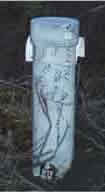
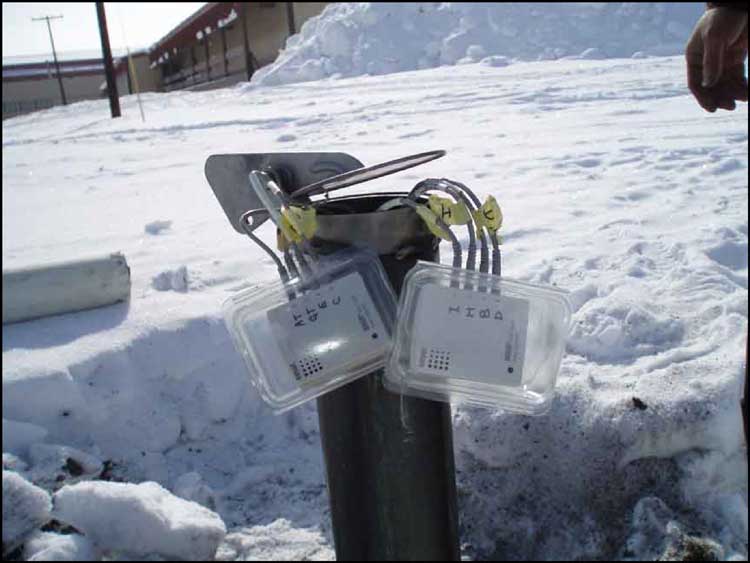
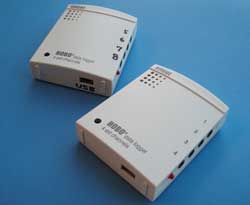
The data logger is the white box with 4 gray cords coming out of it. You will need to download data from both data loggers. |
||
|
||
Things to be careful:
|
||
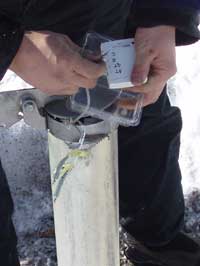
If you have a laptop, downloading can be done outside, on-site. Or you can bring the data logger inside where it may be easier to work. |
Step 1 |
|
Separate all the cables attached to the data logger. (If you are working outside, you can have the sensor cables still attached to the box while you do the following steps.) |
![]() |
Step 2 |
|
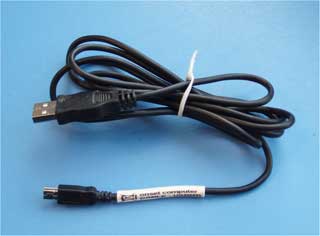
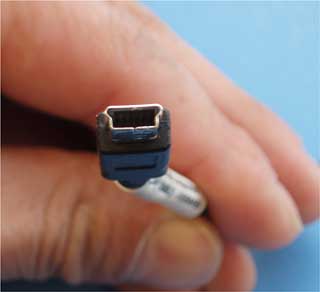
| Find the black cable that we left with you. | One end of the cable looks like this |
![]() |
![]() (odd end of the cable) |
Step 3 |
|
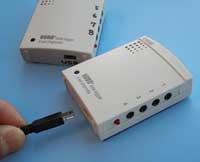
Plug in the odd end of the cable to the data logger. The data logger is ready now! |
![]() |
Step 4 |
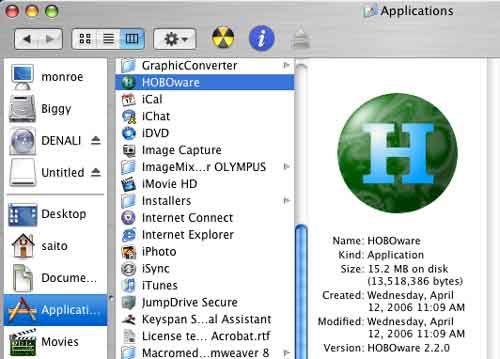
Open the application called “HOBOware” on the
computer. This demonstration is on a Mac, but the process is the same on a Windows machine (PC). |
||
![]() |
Step 5 |
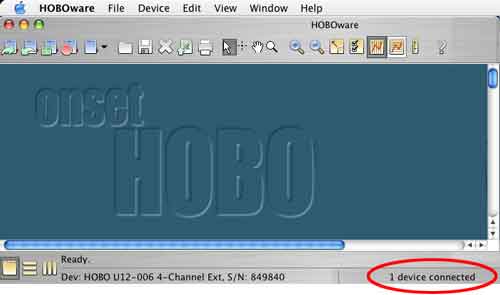
| Click on the icon or open the application, and you should get a screen like this. | ||
![]() |
||
When the data logger is connected it will say that that a device is connected. If it says |
Step 6 |
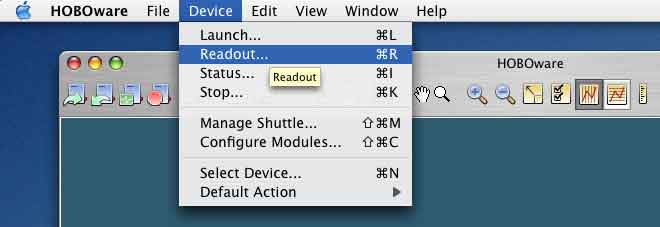
| From the menu select “Device” In the submenu select “Readout”. |
||
![]() |
||
|
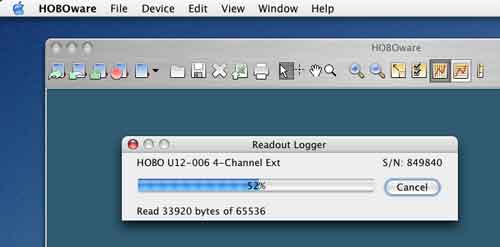
… then the computer will automatically download the data. |
||
![]() |
Step 7 |
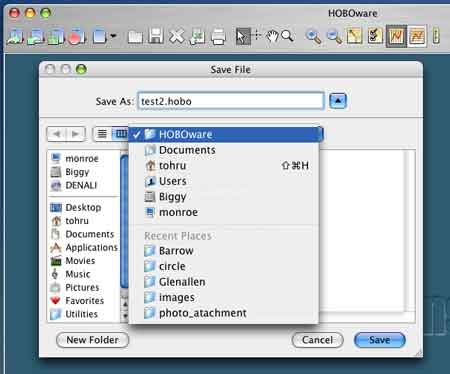
Once the download is complete, the computer will ask to save the file. Select a location and a file name (with .hobo at the end) for the data to be saved. (It is useful to remember where it was saved, so you don’t have to look all over for the file that you saved.) |
||||
![]() |
||||
Repeat the procedures Step 1 through Step 7 to download the data from both data loggers, These are the 2 files we want you to send us. |
||||
Congratulations! (If you wish you can stop here, but while you have this program open |
Step 8 |
Once you are done downloading the data from the data logger, it must be placed back in the plastic pipe at the site. But before you do this please check to see that the small light is blinking on the data logger. It should blink every 10 seconds. This red light shows that the data logger is working. |
![]() |
![]() |
||
If the light does not come on, please follow the instruction to start the data logger. (A very simple process now that you know how to download the data.) |
Step 9 |
Plug the sensor cables back into the data logger. Check the labels on the data logger to the labels on the cable. (Be sure they match.) Carefully close the lid. The tricky part might be lining up the holes on the lid to the holes in the pipe. Push the big bolt thought the holes and put the lock back on. |
![]() |
Congratulations ! |
||
You have successfully downloaded the data and placed the data logger to collect more data for the future. |